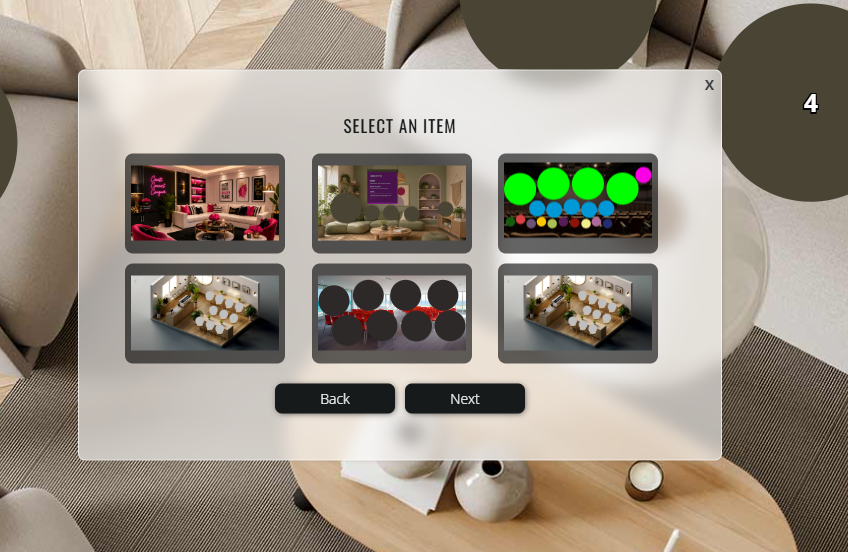
Duplicating a room is the fastest way to create a new room with the same configuration, moderators, files, and content.
How to Duplicate a Room
Space List: https://gobrunch.com/myevents
Click View Rooms to expand the list of rooms in your space.
Find the room you want to duplicate.
Click the Duplicate icon on the right side of the room.
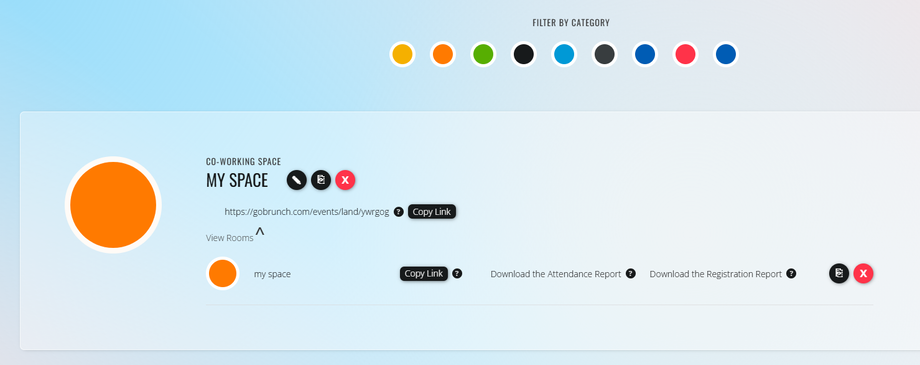
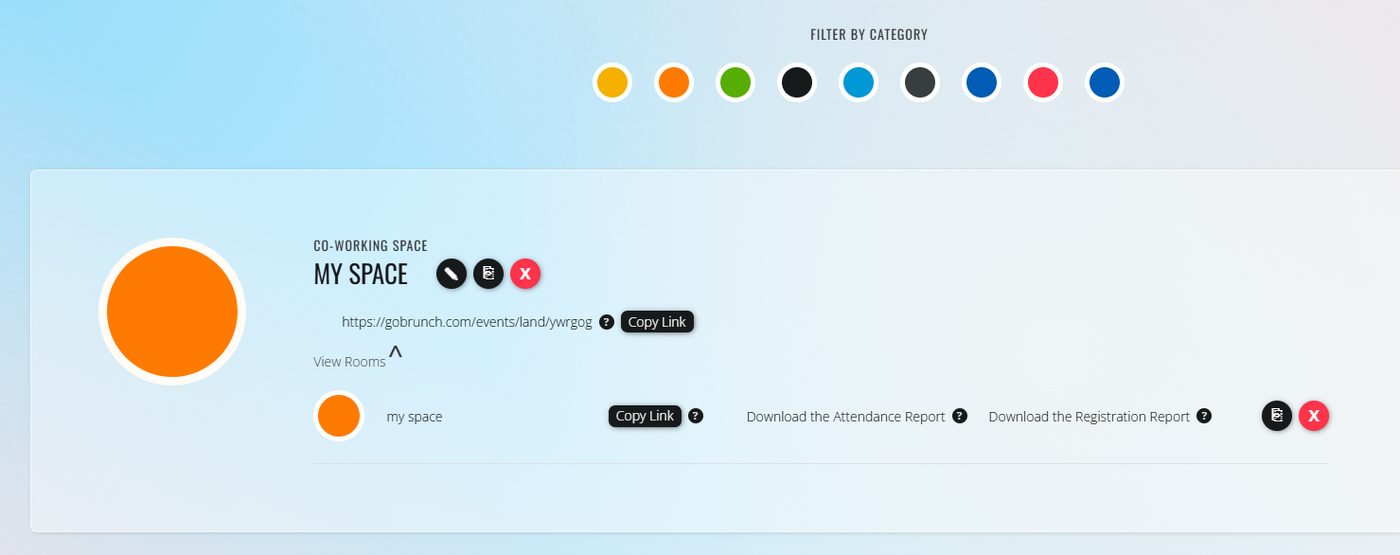
Your new room will be created with the same configuration as the original.
What Gets Duplicated?
When you duplicate a room, GoBrunch copies:
Your selected standard room template.
Your assigned moderators.
Your room settings and preferences.
Any On-Demand videos added to the room.
All files uploaded to the room.
Limitations
Meeting Categories do not support room duplication because they are designed to contain only a single room.
You can duplicate rooms inside:
Co-working Spaces
Classrooms
Webinars
Events
Reusing Your Custom Templates
You may notice that duplicating a room does not copy its custom background. Only the room settings and content are duplicated.
If you'd like to reuse a custom design, you can easily load it from your personal template library inside the Room Editor.
For a complete step-by-step guide, see: