

Want to move or edit multiple items at the same time?
The Select Items tool lets you select multiple elements inside your room and manage them together.
This makes editing faster and much easier when designing larger spaces.
Let’s go through it.
How to Use the Select Items Tool
Inside your room, follow these steps:
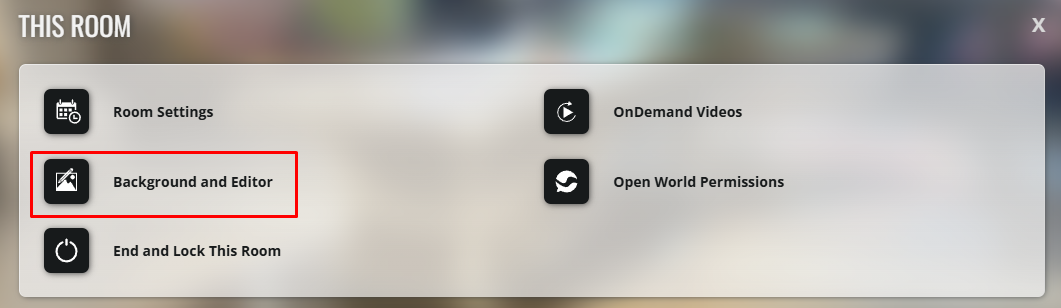
Click on This Room

Click on Background and Editor
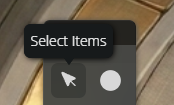
In the editor panel, click the Select Items icon
Start selecting the elements you want to edit together

Once you finish your changes, click Save
What Can You Do With Multiple Selections?
Once multiple items are selected, you can:
move them together
delete multiple items at once
duplicate multiple circles
change circle colors together
organize your layout faster
This works with:
circles
images
navigation elements
and other room items
Selecting Multiple Circles
You can select several circles at the same time and edit them together instead of one by one.
This is useful for:
reorganizing seating layouts
creating stages
changing colors in bulk
duplicating sections of your room
Selecting Images and Other Elements
The selector also works with:
images
decorations
navigation buttons
room elements
You can move or remove them together to speed up your design workflow.
How to Unselect Items
If you already have multiple items selected:
click the Select Items icon again
Your selection will automatically clear.
Important to Keep in Mind
⚠️ Any selected items will move together, so be careful when dragging large groups.
⚠️ Deleting selected items will remove all selected elements at once.
⚠️ The selector works with different types of room elements, not just circles.
⚠️ Don’t forget to click Save before leaving the editor, otherwise your changes may be lost.
Recap
The Select Items tool helps you edit multiple room elements at the same time.
You can:
select circles ⚪
select images 📷
move items together 🗂️
duplicate elements 📑📑
delete multiple objects faster ❌
Just remember to save your changes before leaving the editor ✨