

Need more vertical space in your room layout?
You can now resize the canvas height directly from the editor to better fit your background and room design.
This is especially useful for:
tall backgrounds
vertical layouts
multi-section rooms
immersive spaces
Let’s see how it works.
How to Change the Canvas Height
Inside your room, follow these steps:
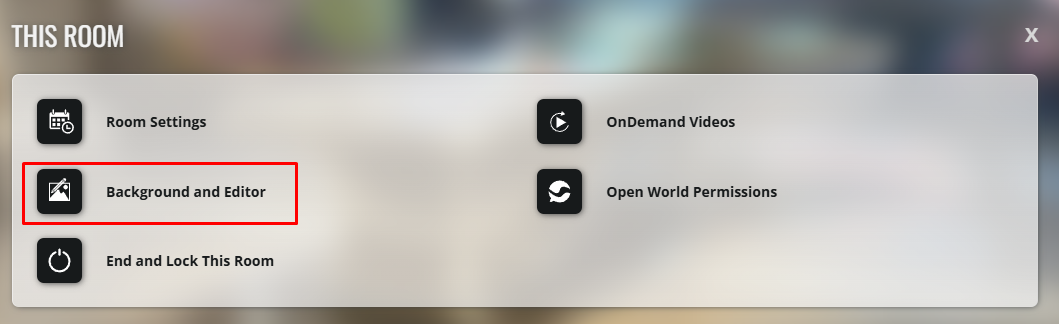
Click on This Room

Click on Background and Editor
In the editor panel, click the Canvas Height icon
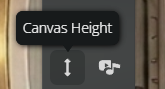
Scroll up or down to resize the canvas height depending on your background size
Click Save when you’re done
What Happens When You Resize the Canvas?
Changing the canvas height gives you more or less vertical room space inside the layout editor.
This helps you:
fit larger backgrounds correctly
create longer room experiences
organize circles and objects more comfortably
improve the visual flow of your room
Important to Keep in Mind
⚠️ If you leave the editor without saving, your canvas height changes will not be applied.
⚠️ Try to match the canvas size with your background dimensions for the best visual results.
Background Tips
For taller rooms, vertical or high-resolution backgrounds usually work best.
Some recommended formats include:
1080 × 1920
1440 × 2560
This helps avoid empty spaces or stretched visuals.
Recap
You can resize your room’s canvas height directly from the editor using the Canvas Height tool.
Just:
This Room → Background and Editor → Canvas Height ↕️
Then resize, save, and your room is ready ✨