

Need to switch accounts without leaving the room?
You can do it directly from inside your GoBrunch space in just a few clicks.
Once you log in with another account, you’ll automatically rejoin the same room using the new profile.
Let’s walk through it.
How to Switch Accounts Inside a Room
While you're inside the room:
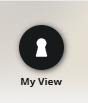
Click on My View
Click on My Profile
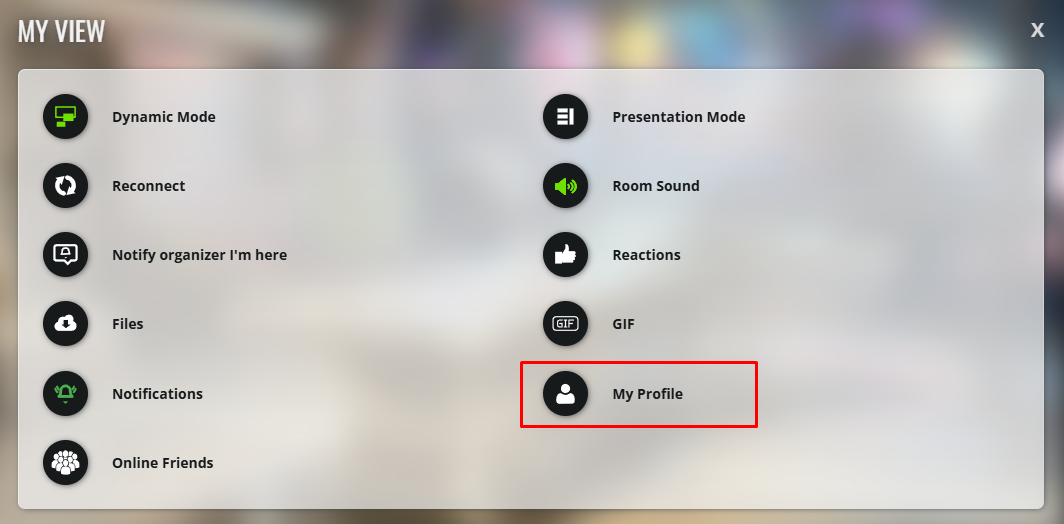
Click on Switch Account →

Log in with another account or create a new one

Once you finish, you’ll automatically return to the same room using the new account
What Happens After Switching?
When you switch accounts:
You stay in the same room
Your previous session is replaced with the new account
Your new profile, avatar, and permissions will load automatically
This makes it easy to:
test different accounts
switch between work and personal profiles
join rooms with another identity without reopening the link
Important to Keep in Mind
⚠️ If you were hosting or moderating the room with your previous account, those permissions may change after switching.
⚠️ Make sure you save any room edits before changing accounts.
Recap
You can switch accounts directly from inside any GoBrunch room using:
My View → My Profile → Switch Account 🔀
After logging in, you’ll automatically rejoin the same room with your new account.
Simple and seamless ✨